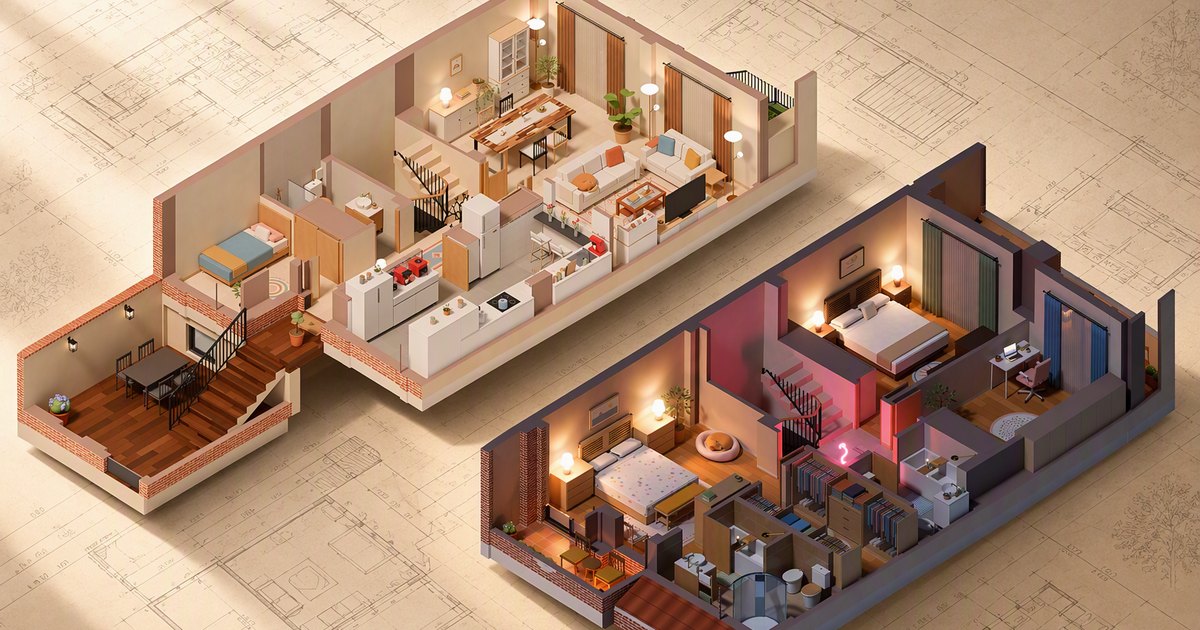
TL;DR: I’ve turned my house into a 3D replica that lives in the browser and moves with what’s really happening in it. Home Assistant is the brain; this is its face.
- I started from the house’s floor plans and a few photos. Python scripts build the model in Blender, and from there it jumps to the web with Three.js.
- Everything you see is real: awnings, garage door, washing machine, cars, smoke, rain, wind… Every single thing moves because a real sensor says so.
- It’s not just for looking: one click turns on a light, moves an awning or opens the garage door. And when something happens, the camera takes you there.
- It has a real mode and a simulated mode, and it works inside Home Assistant without asking for credentials and outside it too: on your phone, in Spanish and English, in light and dark mode.
- I built it in about two weeks with the help of AI. The code isn’t public, for now.
- It all runs at home, in Docker containers: no services to sign up for, no monthly fees. The only investment was a handful of AI tokens to build it.
It’s pouring outside. On the screen, too: clouds close in over the roof, the rain falls as hard as my weather station says it does, the hammock in the back garden sways and the fringes on the awnings flap with every gust. The car is in the garage, because the camera can see it. And the washing machine, which finished a while ago, has a laundry basket next to it to remind me that someone needs to empty it. It’s not just a pretty animation: it’s my house, right now.
The face of Home Assistant
Home Assistant does almost everything in my house: the automations, the alerts, the logic of what turns on and when. But its interface, however well you set it up, is cards: lists of things with their state. To find out what’s going on, you have to read. And I wanted to look.
That’s the idea behind the whole project. Home Assistant is the brain and this is its face. As an engine it’s superb and I’m not trying to replace it: the logic and the automations are still all its own. What I didn’t expect was this: almost everything I used to do every day in its usual interface, I now do from the 3D house. Turning on a light, checking the garage door is closed, seeing whether the washing machine has finished or who’s home: I open the browser, take it in at a glance and sort it out right there.
From floor plans and photos to Blender
It all started with the house’s floor plans: the developer’s PDFs, with the four floors (the basement with the garage, the ground floor, the first floor and the attic) and a dimensioned plan of each one.
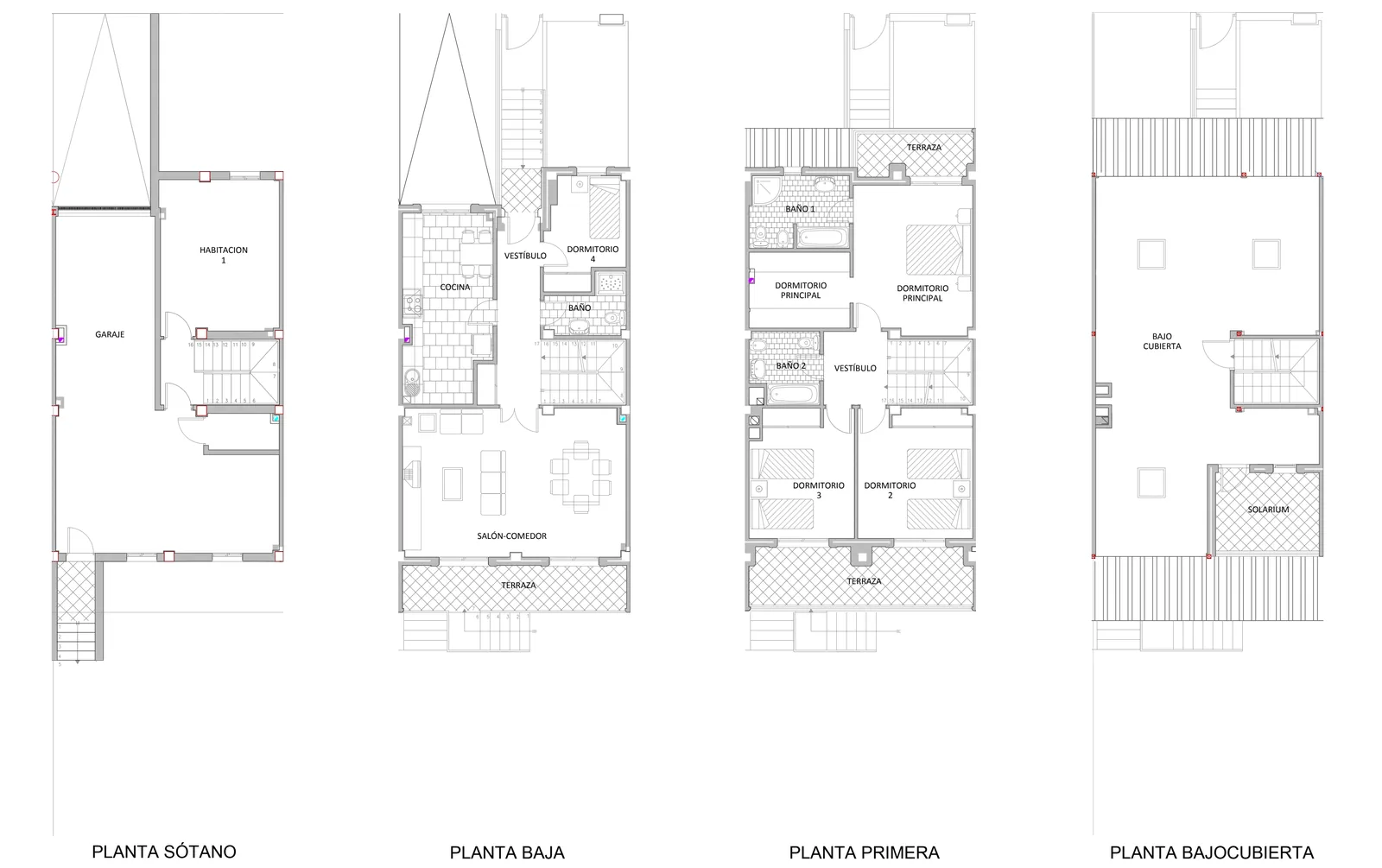
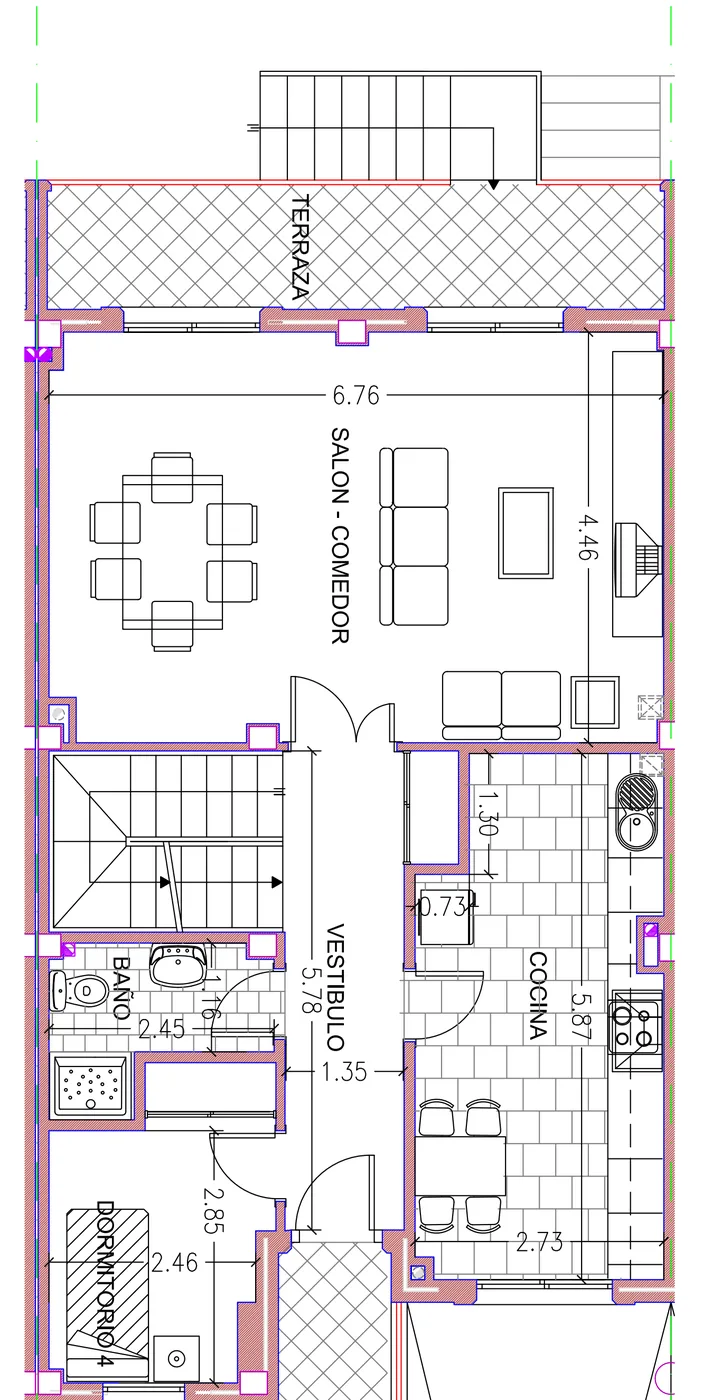
The plans tell you where every wall, door and window goes. What they don’t tell you is what furniture there is, what color the sofa is or where each lamp sits. That came from real photos of every room.
And here’s the interesting bit: I didn’t model the house by hand. It’s described by Python scripts (where every wall, piece of furniture and lamp goes), and they’re the ones that build the Blender file from scratch. If I want to move a piece of furniture, I change the data and generate the house again. And because a program generates it, every object comes out already labeled: this is a light, this is an awning, this is the garage door. Those labels will be key later on.
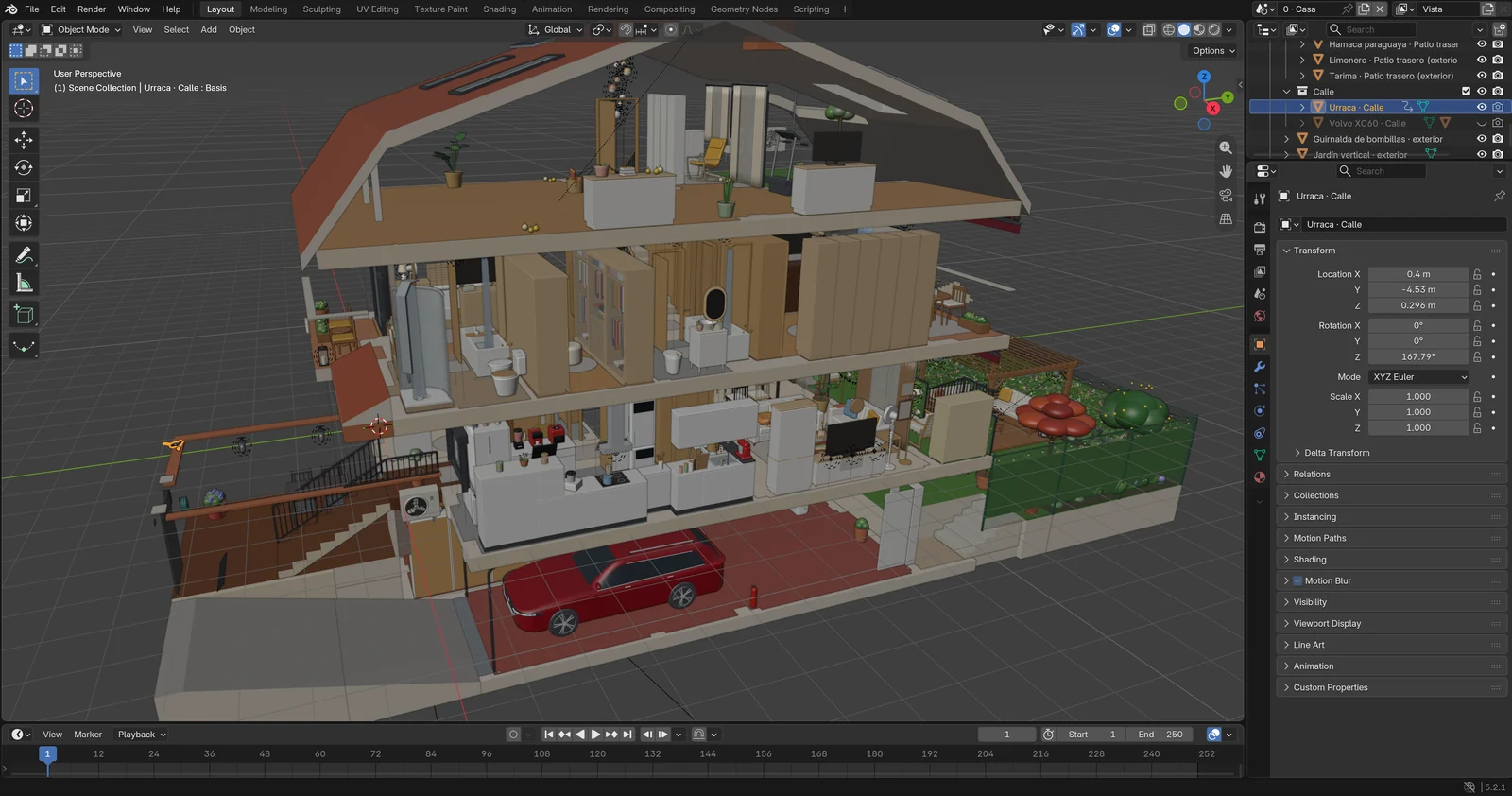
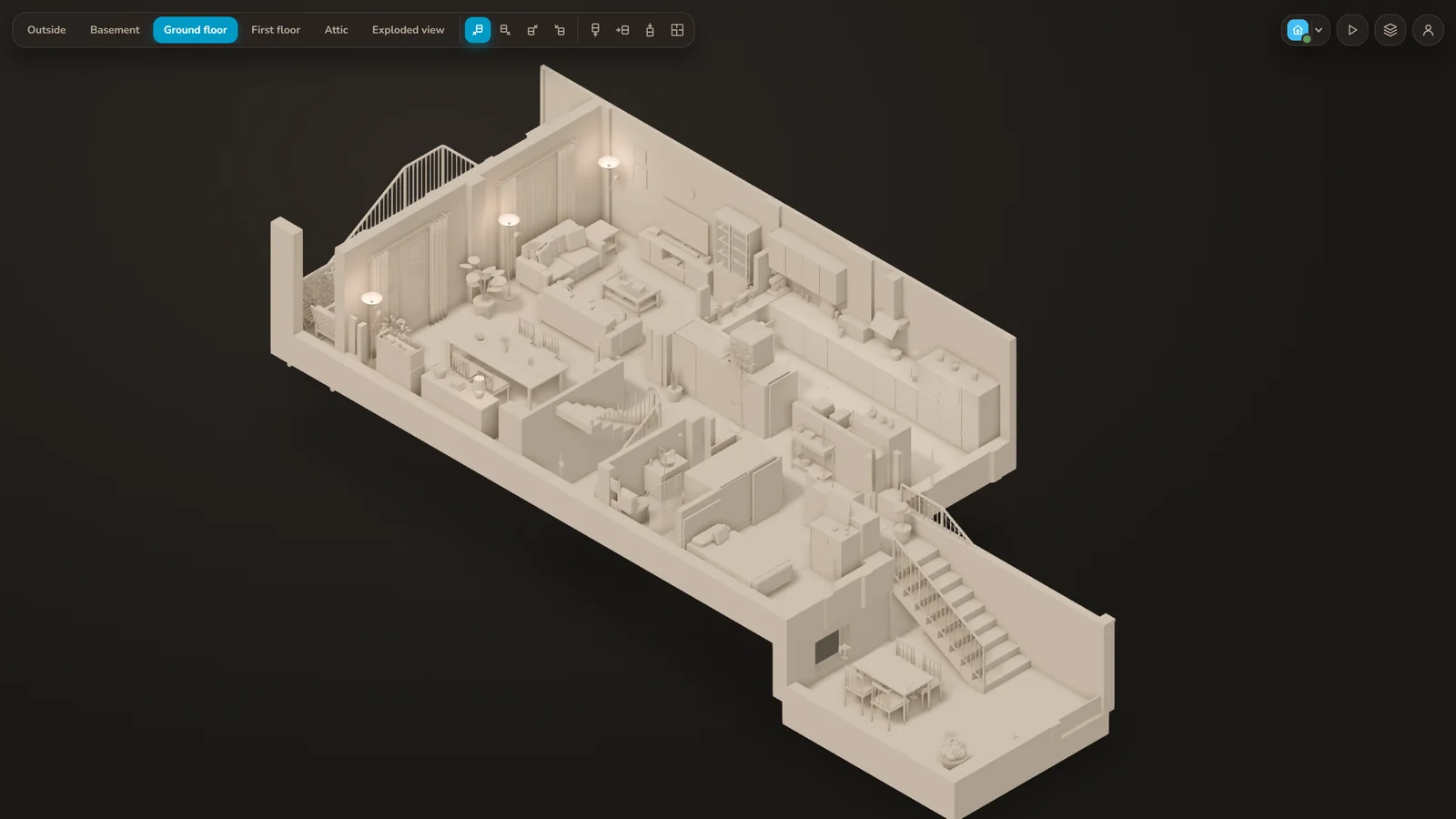
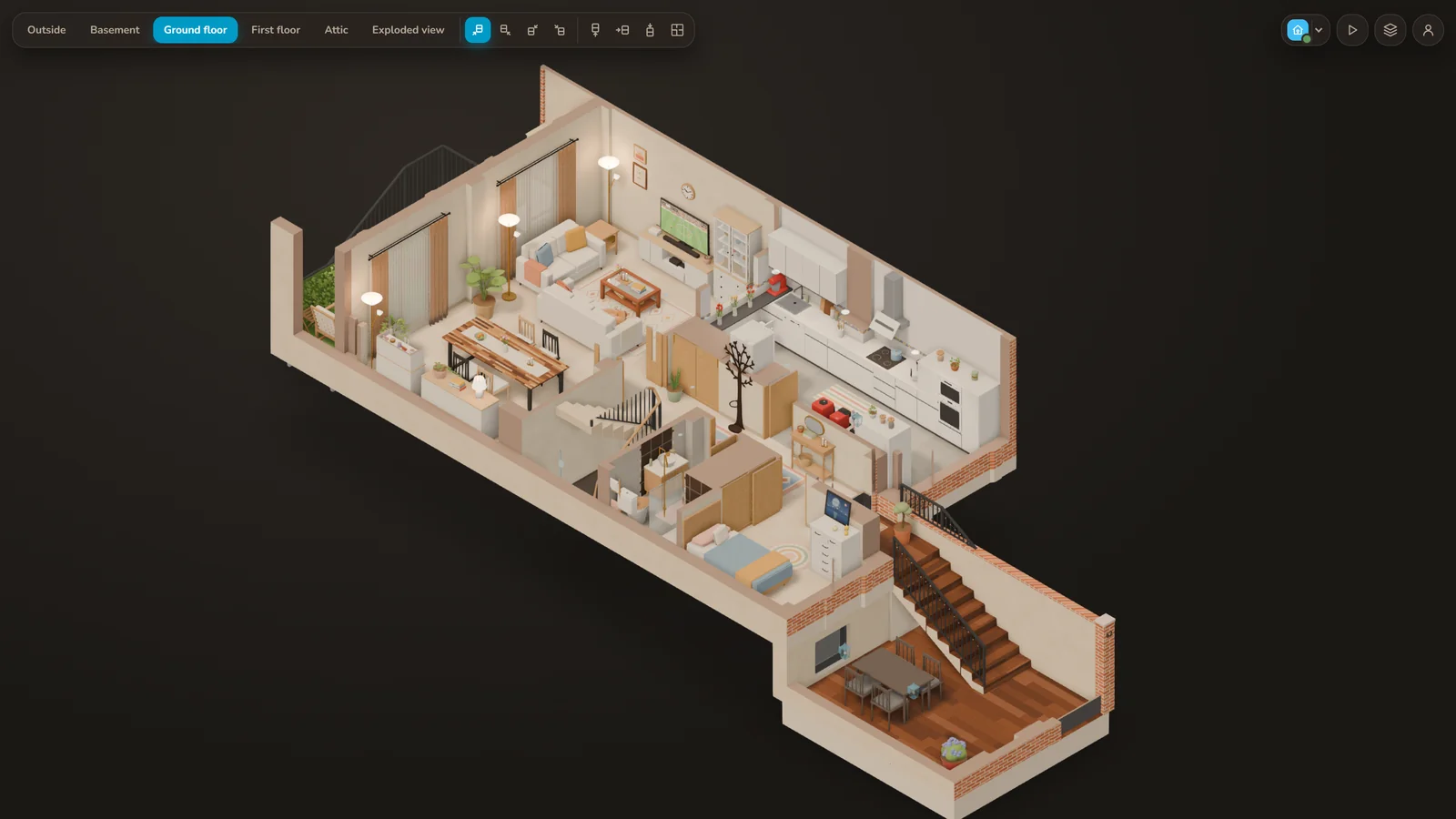
The style was settled early: isometric and cozy, nothing photorealistic. More dollhouse than photo.
First idea: still images
My first plan was much more modest: render still images of each floor from several angles, in day and night versions, turn the lights on or off according to their state in Home Assistant, and switch to the night version at sunset.
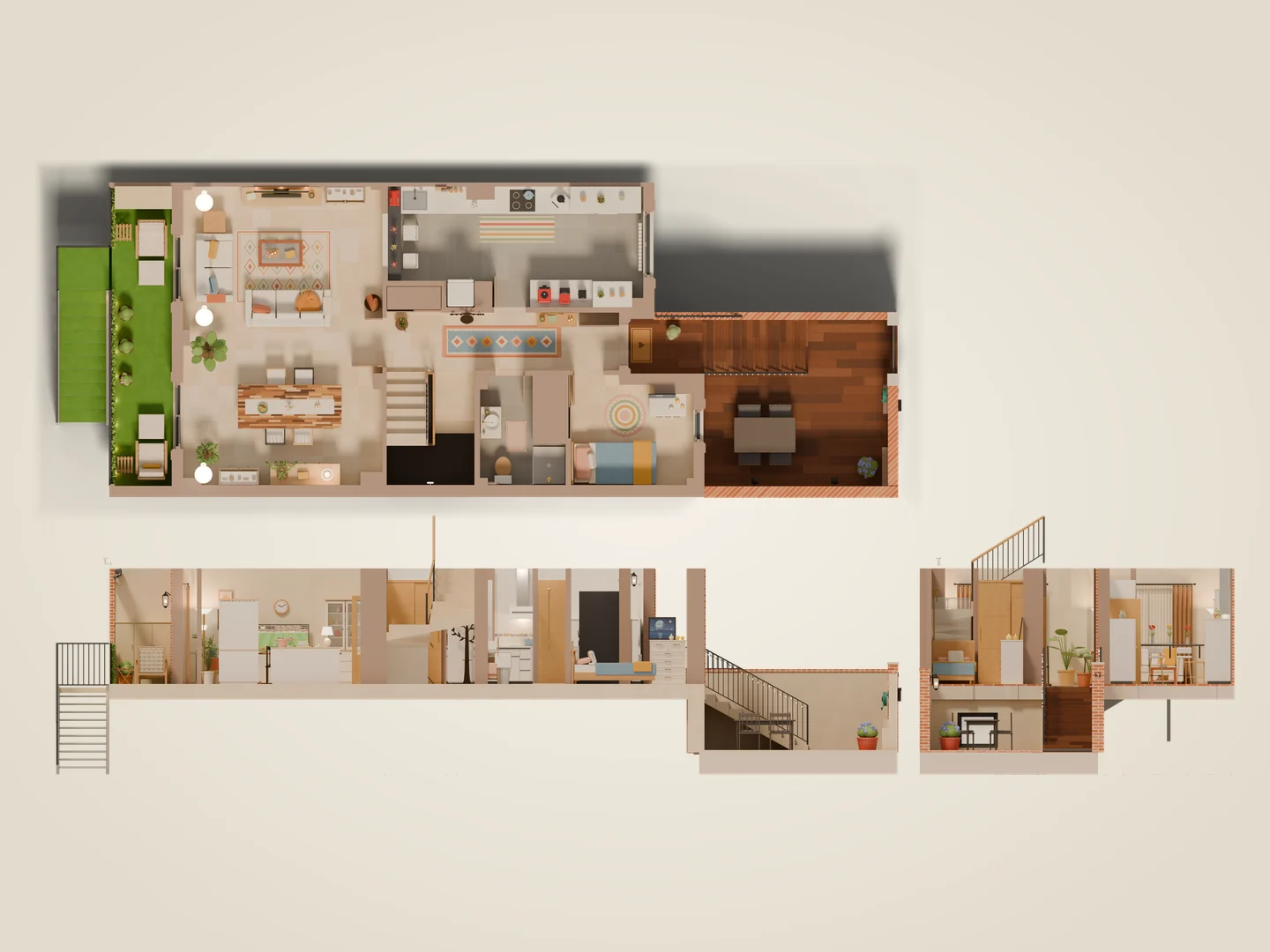
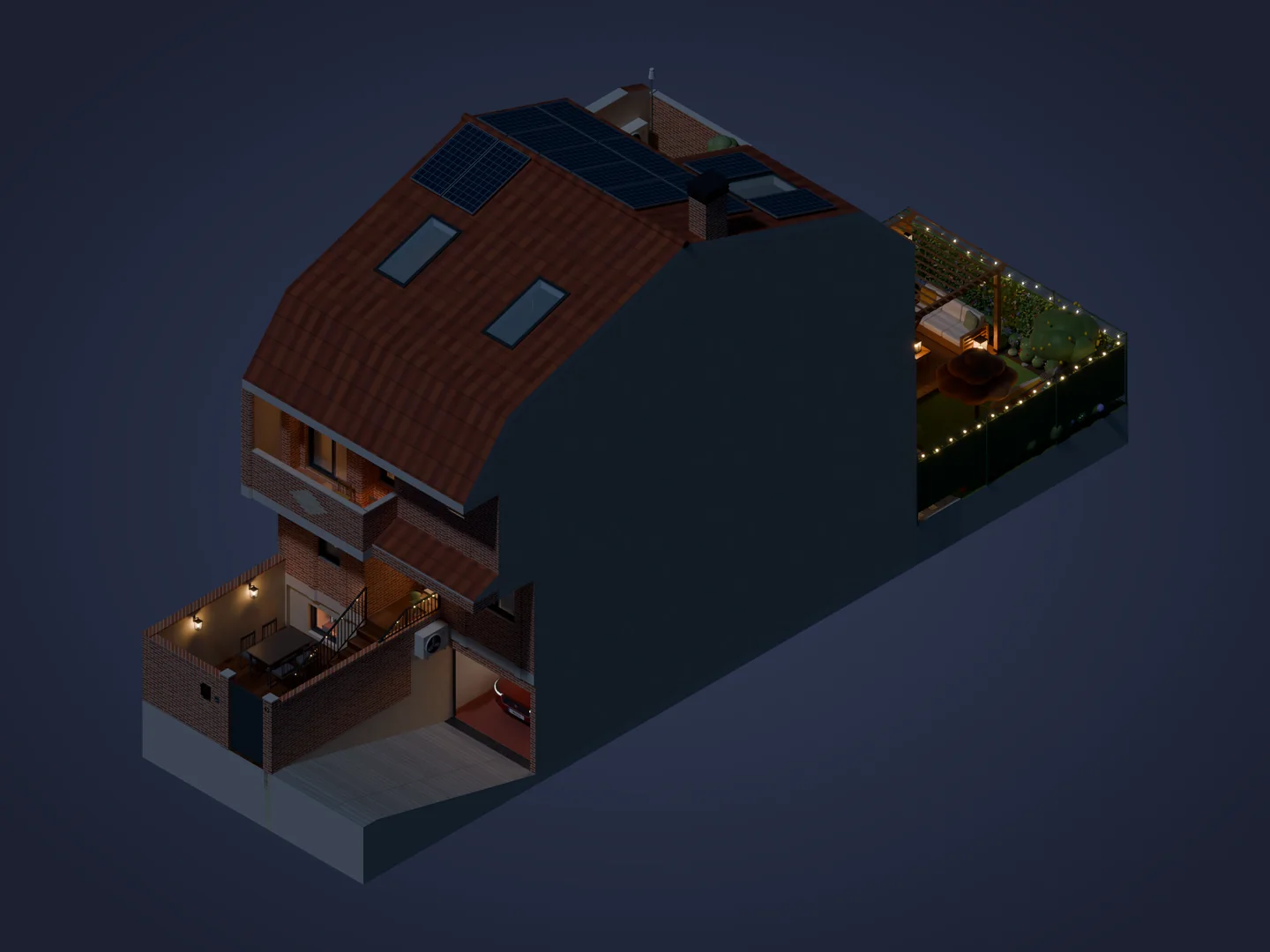
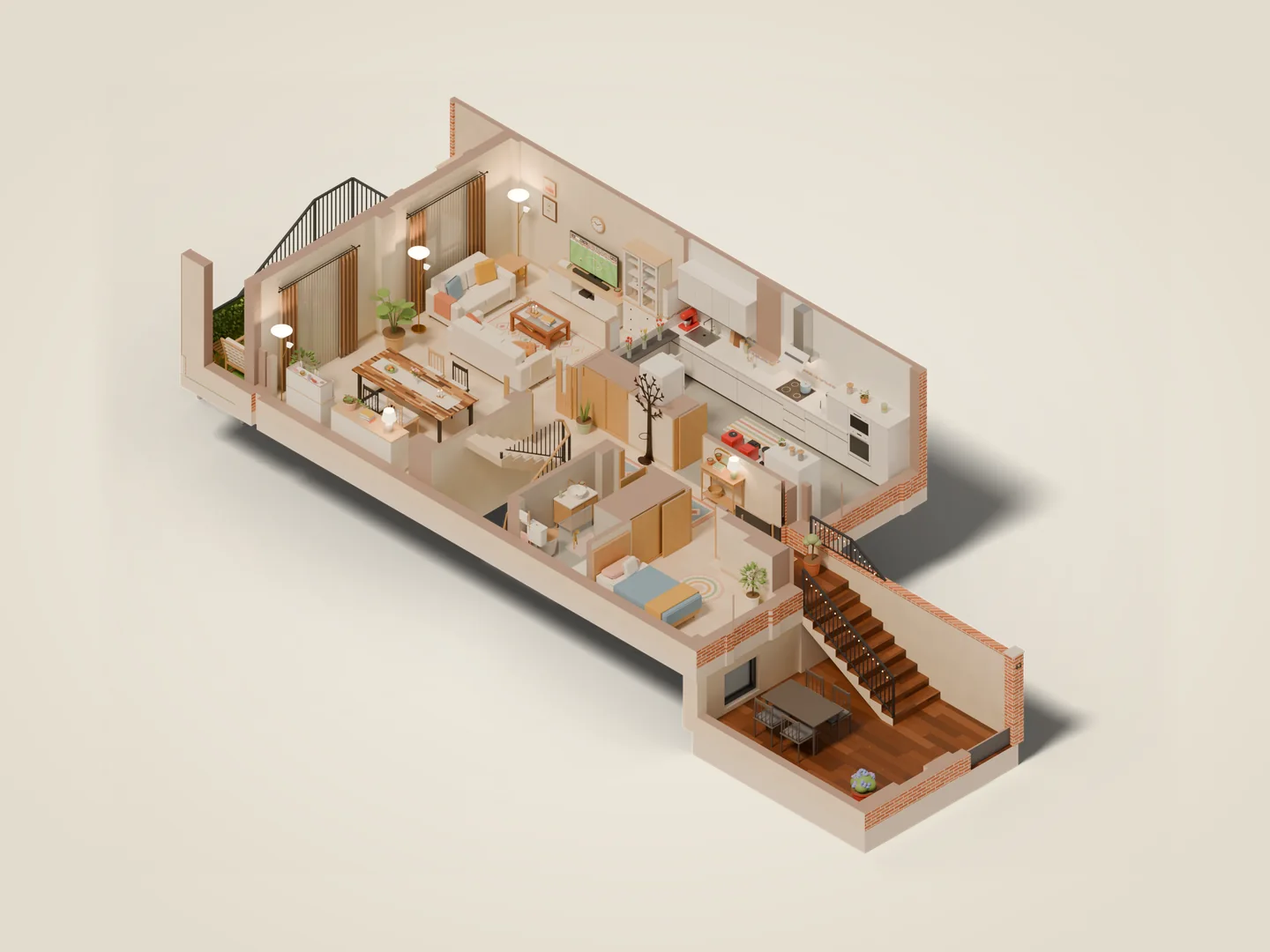
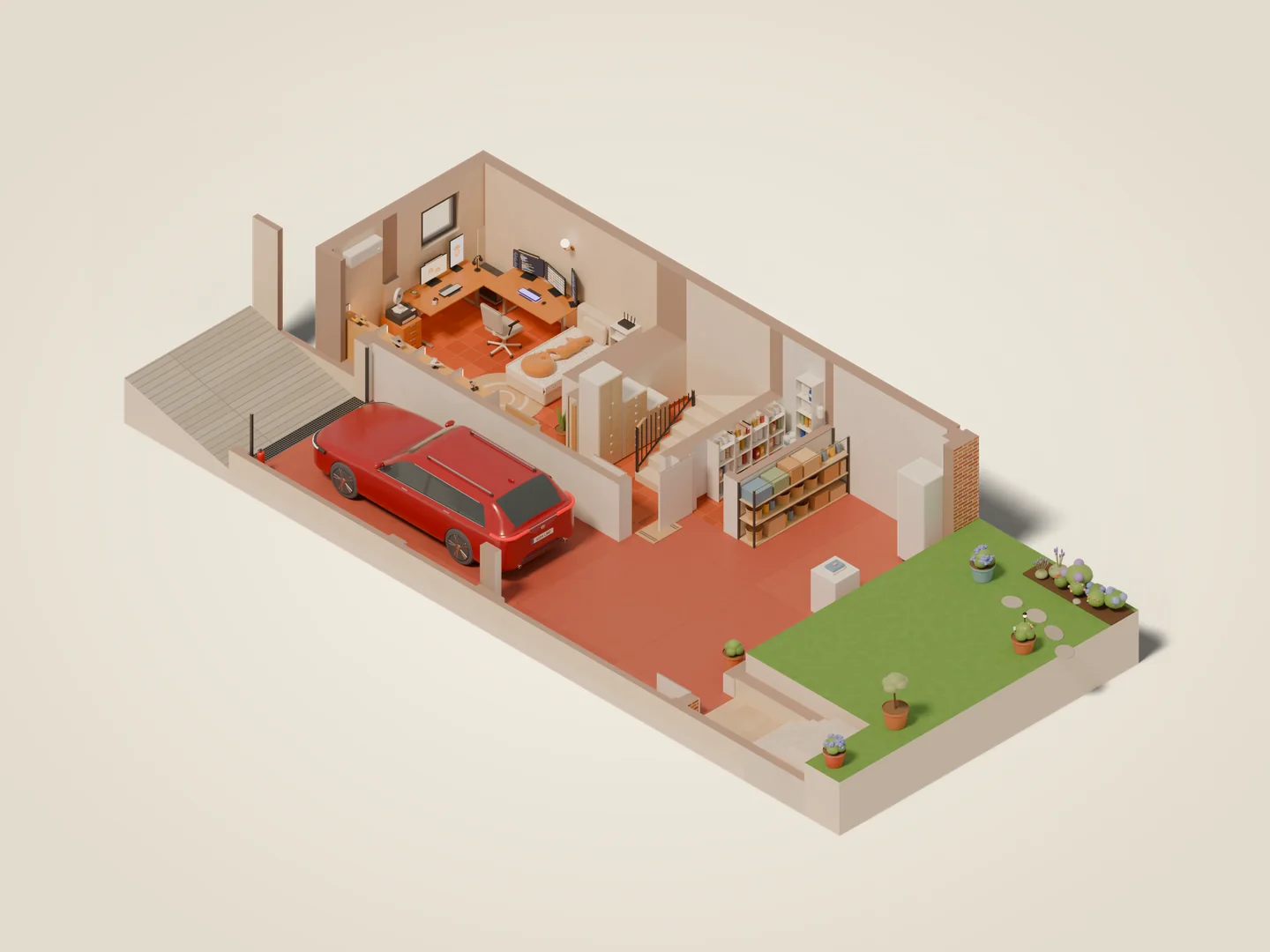
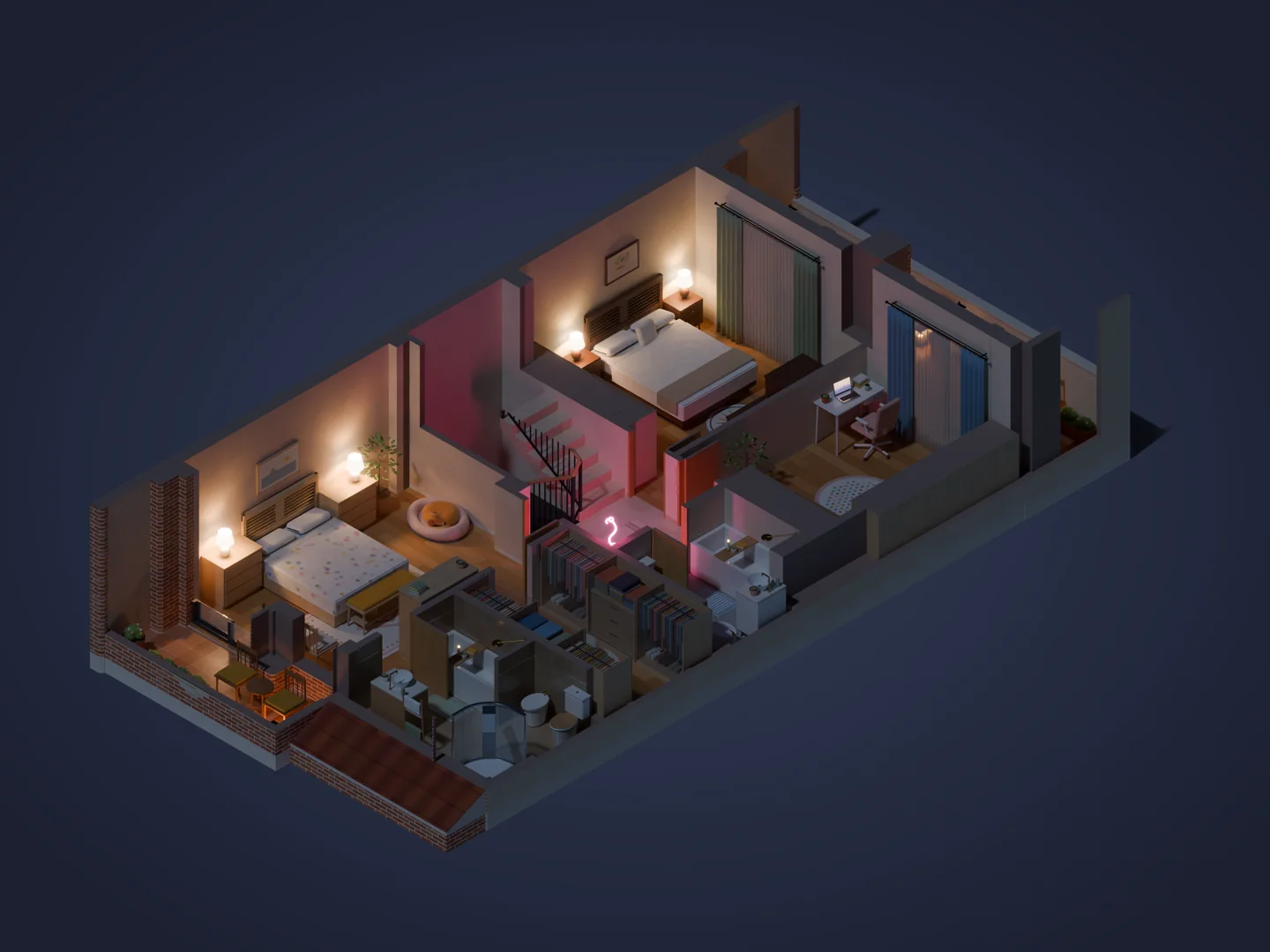
It worked, but it fell short fast. Every light you want to show on or off multiplies the number of images you need, the camera is fixed and nothing moves: not an awning, not a door, not the rain.
The leap to 3D on the web
Then I thought: if the whole house is already in 3D inside Blender, why settle for pictures of it? We took it to the web with Three.js, the best-known 3D library for browsers. The first time I saw it spin in the browser, with its light and shadows, I knew it had far more potential than a set of images.
In just four days we went from still images to having the house in the browser. From there we hooked it up to my real Home Assistant, and the question changed. It was no longer “what images do I need?” but “how much of what I know about my house can I show here?”.
Everything you see is real
This is the part I’m proudest of: there are no props in the 3D house. If something moves, lights up or changes, it’s because a real sensor said so. The second video starts with the floor plan, raises the house and then walks you through it.
A few examples:
- The weather. The rain falls as hard as my weather station measures. The wind moves the hammock in the back garden, the fringes on the awnings and the anemometer, which spins according to how hard it’s blowing.
- The sun. It’s where it really is, based on the time and the real orientation of the house, shadows included. The day and night from my first idea now happen on their own.
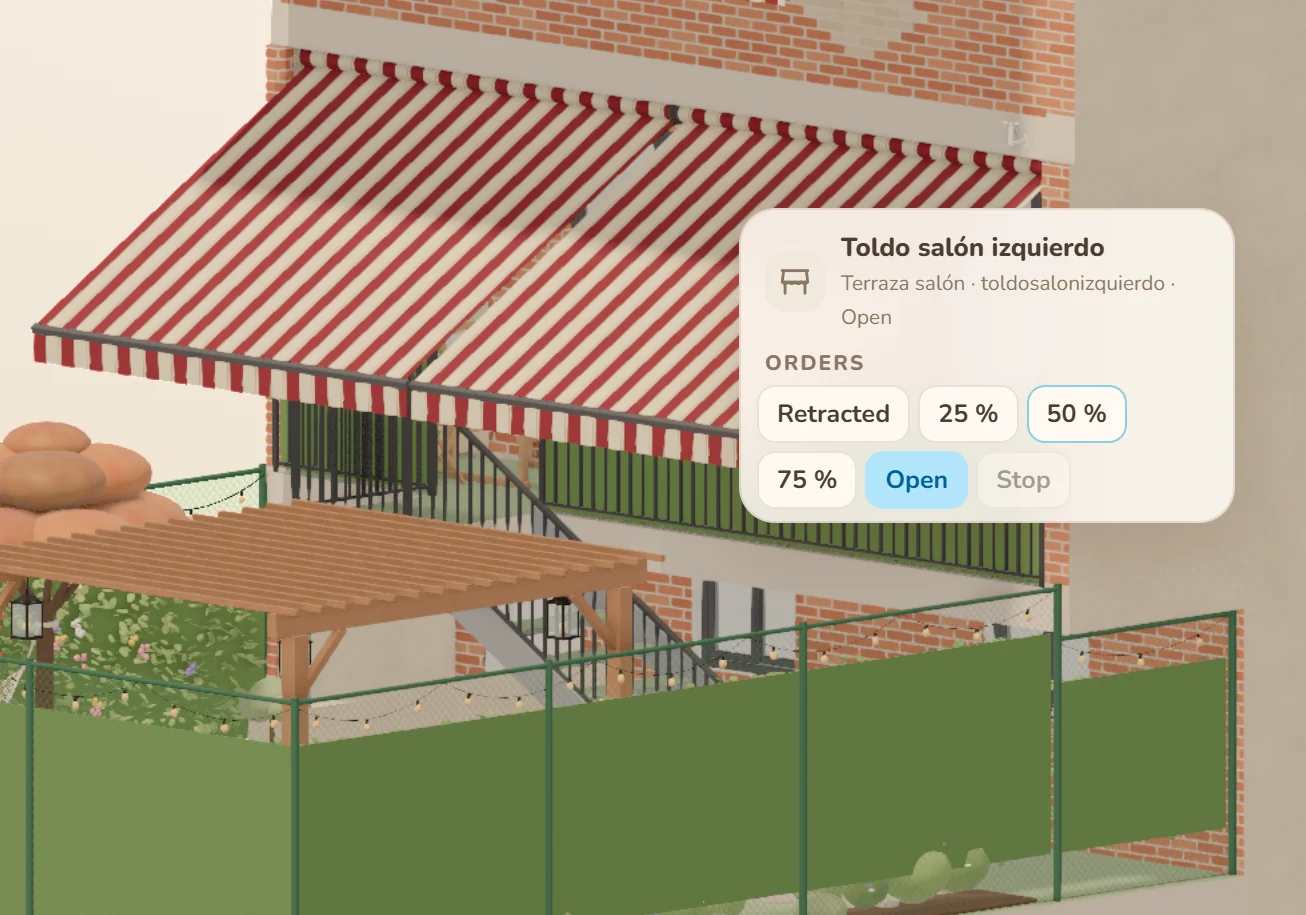
- Awnings and shutters. They’re open exactly as far as they really are, from 0 to 100%. In Home Assistant they’re covers.
- The cars. The one in the garage only appears if the camera can see it, thanks to Frigate. The electric one on the ramp also glows while it’s charging and shows on its rear window how long it has left.
- The washing machine. A power meter knows when it starts and when it finishes, and a sensor on the door knows whether you’ve emptied it. If you haven’t, a laundry basket appears next to it.
- Smoke and water. The smoke detectors are real: if one goes off, its room fills with smoke. If a leak sensor detects water, a puddle appears.
- Temperatures. Every fridge, every freezer and every room with a sensor shows its own.
- Motion. When a sensor detects someone, the floor of that room turns blue and ripples spread out.
- People. Everyone appears in the room they’re in, sitting in their usual spot: the sofa, the office chair…
- The solar panels. They fill up with yellow according to what they’re producing, with the kW printed on them.
The full inventory: what's behind each thing
| What you see | What detects it | In Home Assistant | Brand and model |
|---|---|---|---|
| Rain, by intensity | Rain gauge and rain sensor | sensor, binary_sensor |
Ecowitt Wittboy |
| Hammock, awning fringes and anemometer | Anemometer: wind and gusts | sensor (km/h) |
Ecowitt Wittboy |
| Sun, light and shadows | The time and the house’s orientation | sun |
— |
| People in their room | Bluetooth signal strength of our phones | person + area |
ESP32 + Bermuda BLE Trilateration |
| Awnings from 0 to 100% | Z-Wave motors | cover |
Z-Wave, with Z-Wave JS UI |
| Garage door | Contact sensor and relay | binary_sensor, switch |
Aqara Door and Window Sensor + Shelly Plus 1 |
| Front gate and its opener | Contact sensor and relay | binary_sensor, switch |
Aqara Door and Window Sensor + Shelly 1 |
| Lock on the door to the garage | Smart lock | lock |
Nuki |
| Roller shutters | Shutter controller | cover |
Shelly 2PM |
| Doors and windows | Contact sensors | binary_sensor |
Aqara Door and Window Sensor |
| Car in the garage | Camera and object detection | binary_sensor |
Frigate |
| Electric car charging | Car integration and the charger’s power draw | binary_sensor, sensor |
Volvo XC60 + Shelly Plug |
| Washing machine: running, door and needs emptying | Power draw and door sensor | binary_sensor, input_boolean |
Aqara Door and Window Sensor + Shelly Plug |
| Dishwasher, oven, hob and microwave | Energy meter | binary_sensor, sensor |
Shelly EM |
| Boiler and treadmill | Smart plugs with power metering (from the treadmill’s power draw you can even tell how fast you’re walking) | binary_sensor, sensor |
Shelly Plug |
| TVs: on, volume and time | Media player | media_player |
Samsung Smart TV integration |
| Smoke filling the room | Smoke detectors | binary_sensor |
Aqara Smoke Detector |
| Puddles | Leak sensors | binary_sensor |
Aqara Water Leak Sensor |
| Temperature of fridges and rooms | Temperature sensors | sensor |
Aqara Temperature and Humidity Sensor |
| Solar panels | Energy meter (and the inverter, for faults) | sensor, binary_sensor |
Shelly EM |
| Lights and LED strips | — | light |
WLED, Philips Hue, Shelly, Govee |
| Air conditioners | — | climate |
Mitsubishi Electric MELCloud |
Prettier and more alive
With the data in, I realized it wasn’t just about seeing it. What if we made it pretty and lively too? That’s where the most fun part began: the animations.
Almost all of them are prepared in Blender, like in a film (opening a door, extending an awning, turning on a lamp), and the web plays them when Home Assistant says it’s time.
- What opens, opens gradually: doors and windows, with all their panes; awnings, shutters and the garage door; even the curtains, which draw back when their window opens.
- What’s running, shows it: the blades of the fans and of the air conditioners’ outdoor units spin; the dishwasher door turns see-through so you can watch the spinning arms and the jets; the microwave plate turns with a chicken inside, steam rises from the pot on the hob and the electric fly zappers crackle.
- The weather: the wind, in steps, moves the trees, the hammock and the awning fringes. When it rains, the sky clouds over, the light softens and drops fall, more of them and faster the harder it rains.
- The house itself: switching floors fades everything; the floors pull apart like a model opening up; and from the floor plan the walls rise and the furniture drops into place, like at the start of the second video.
- And a bit of poetic license: some birds that fly around and land on the railings and the roof. No sensor measures those.
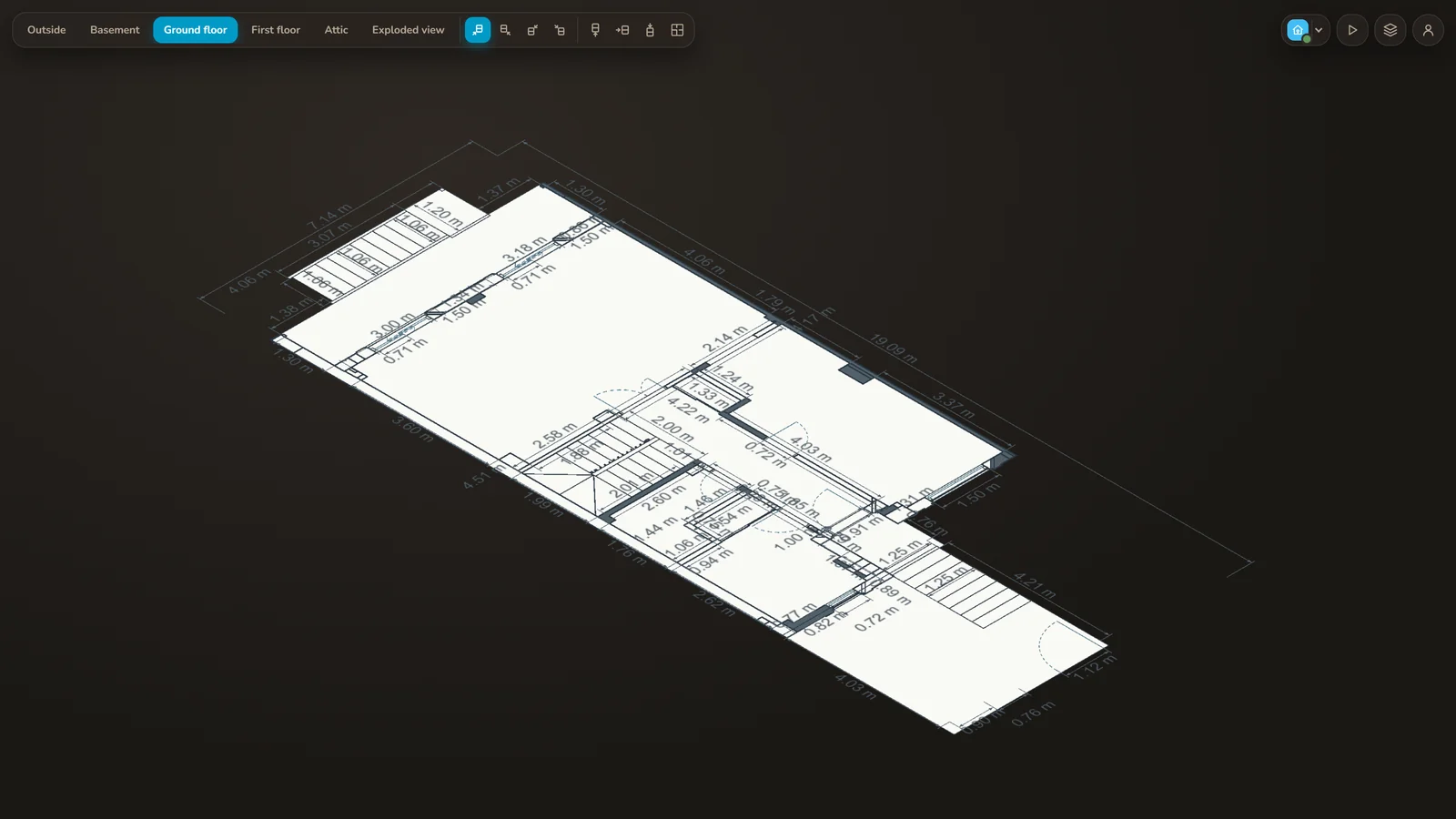
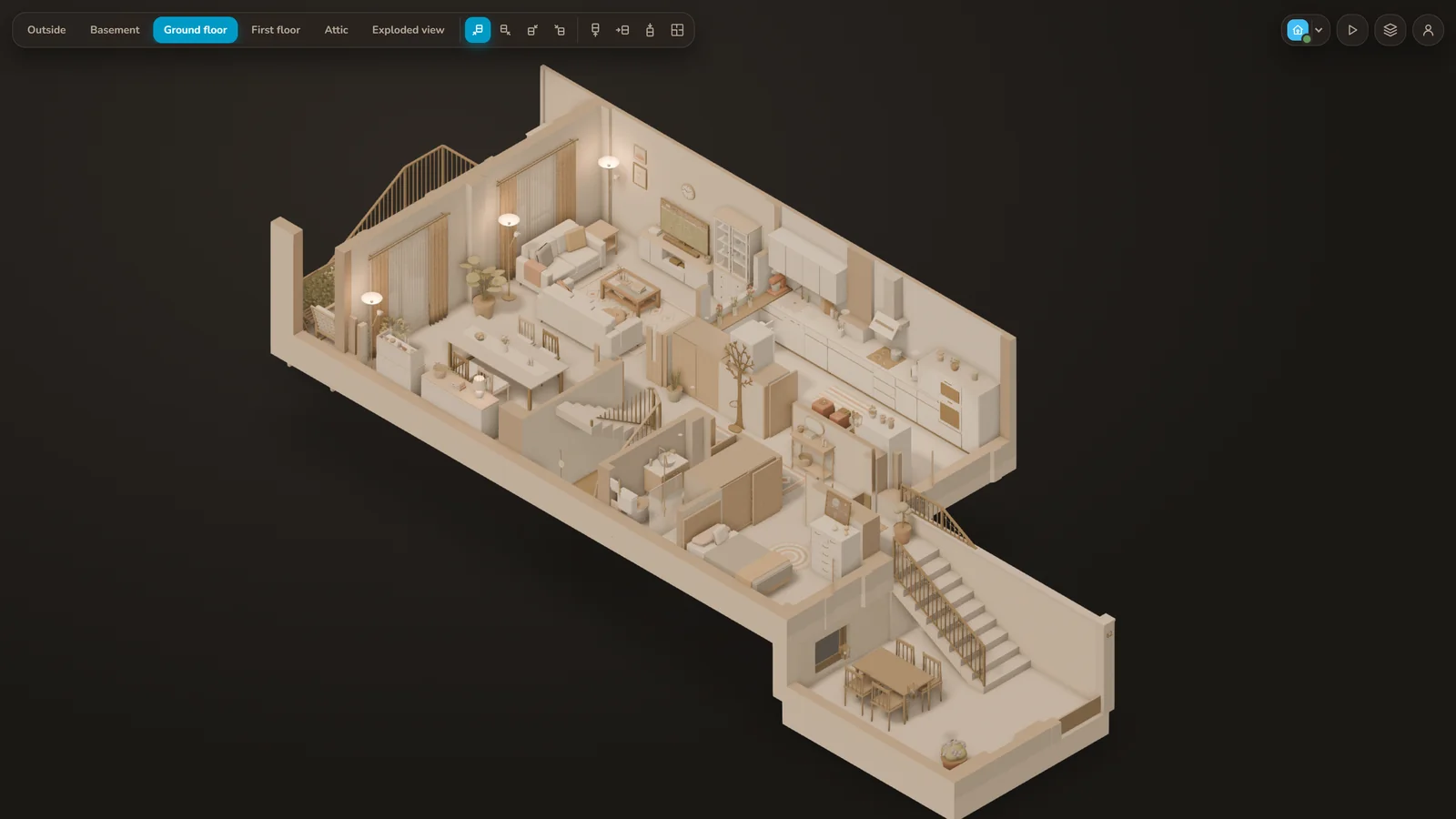
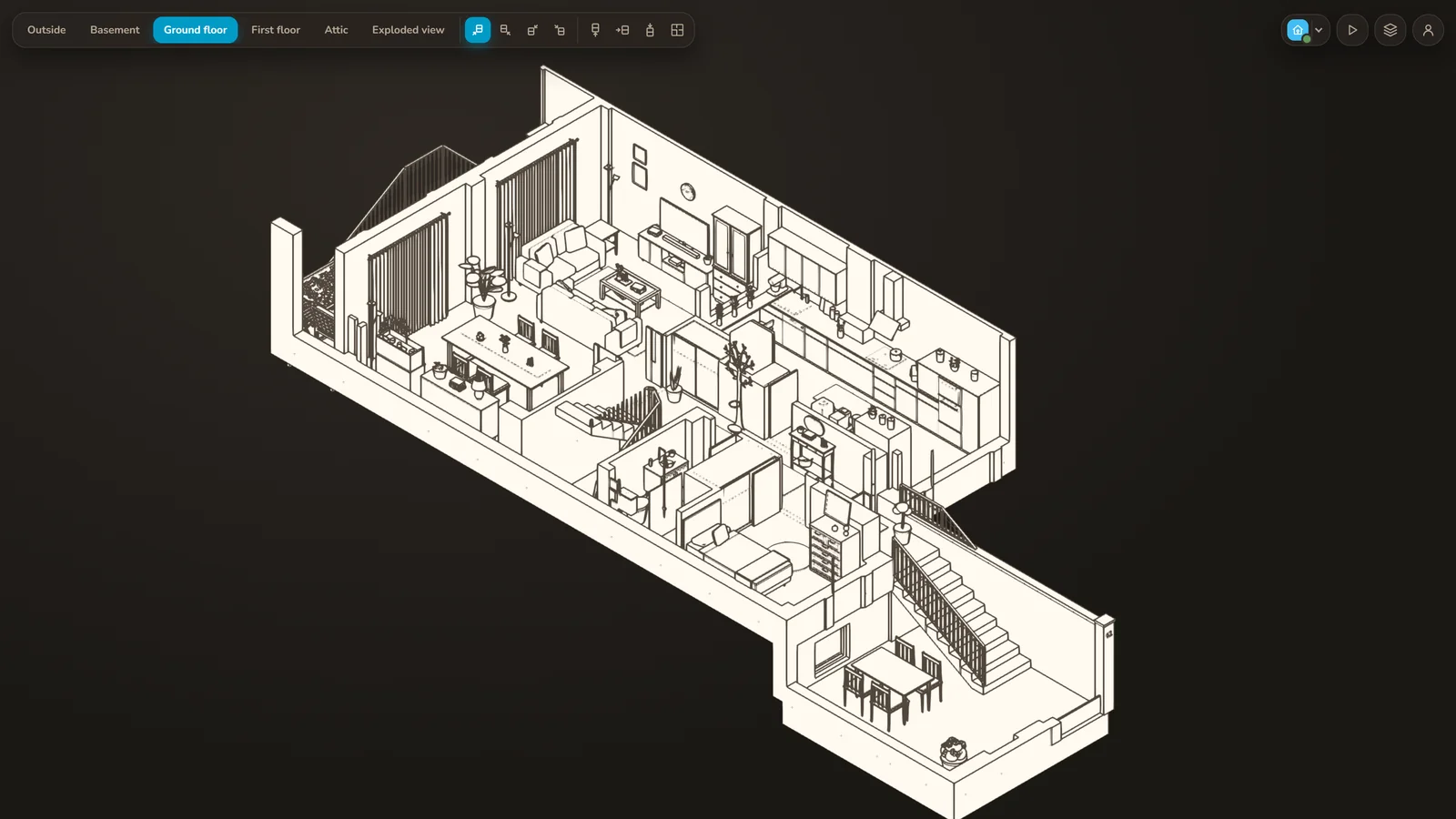
And since the house is truly 3D and not a picture, it can also change its look. Besides the normal one, there’s scale model, drawing, color illustration, paper and cardboard, colored clay and architectural plan, which turns the house back into the plan it came from, dimensions included. It switches from one look to another with a sweep of light, and everything keeps working the same: the lights, the awnings, the people…
Not just for looking: you can control it too
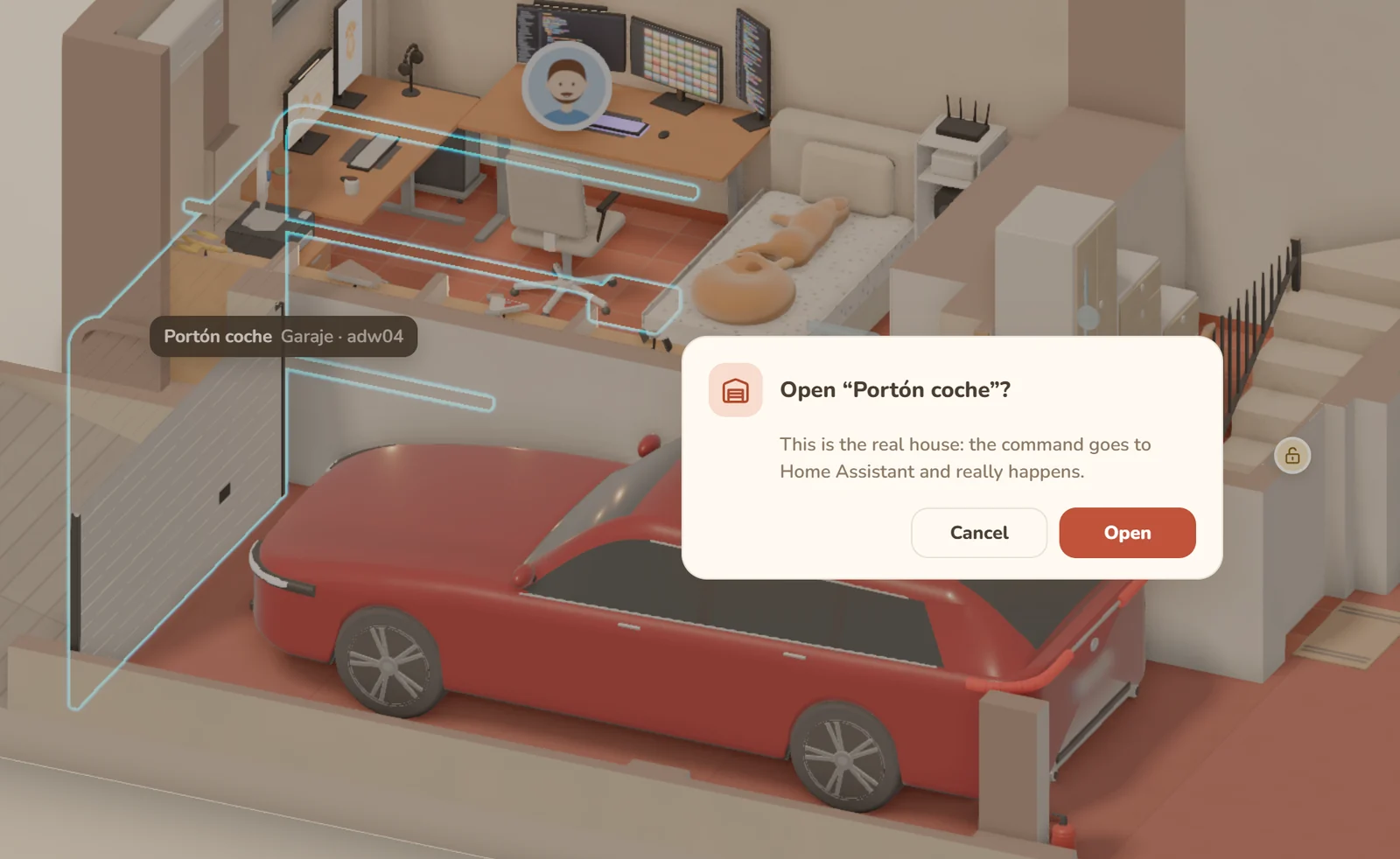
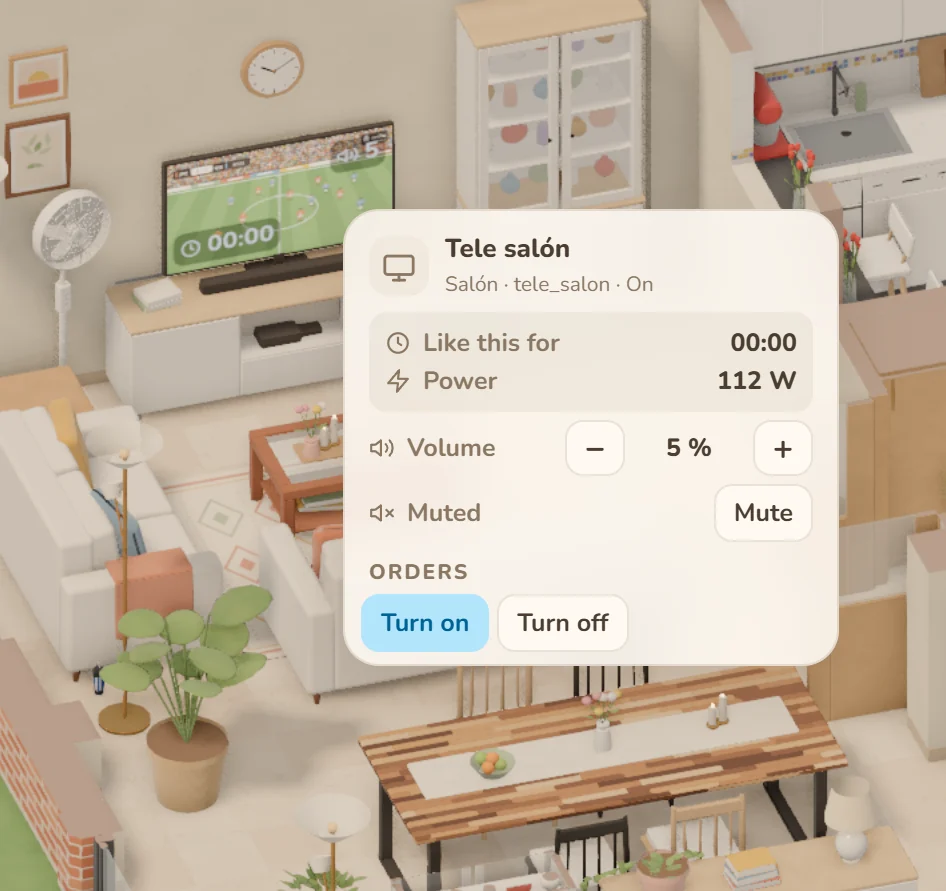
The 3D house isn’t just a mirror: it’s a remote control too. Click a lamp and it turns on. Click an LED strip and it turns on with its effect; right-click it to pick another. I can raise or lower awnings and shutters, change a TV’s volume or the air conditioner’s temperature, lock the door to the garage or open the gate to let someone in.
There are two details I really like. First: just like in real life, what you ask for doesn’t change instantly. It stays pending until Home Assistant confirms it has really happened, and only then does it change. Second: the sensitive stuff, like the garage door, the gate or the lock, asks for confirmation first.
The house tells you what’s happening

With so much on screen, something was missing: the house telling me what’s going on. Dynamic views do exactly that. When something happens, the camera moves to that room on its own, highlights it for a moment and a banner at the bottom says what happened.
Someone walks into the office and the motion sensor picks it up. The terrace door opens. Someone moves from the kitchen to the living room. The garage door starts going up. A smoke detector goes off. Each time, the camera goes there and shows you. You don’t have to look for anything: the house tells you.
How it all fits together
For non-programmers, the idea is simple: there are three pieces, and each one only knows its own job.
- The model describes the house: walls, furniture, lights. It knows nothing about Home Assistant.
- Two configuration files act as the bridge. The links say which Home Assistant entity each thing in the house is (“this lamp is the living room light”). The profiles say how each type of thing is interpreted (“an awning at 40% is drawn like this”).
- Home Assistant provides the logic. If something needs working out, it works it out; the web only reacts to what it receives.
That’s why the engine isn’t tied to my house: with another model and other links, it would work for any house.
For the techies: the stack
- Model: Python scripts generate the Blender file from scratch, with metadata on every object (what it is, its key, its floor). The still images come from there too.
- Export: binary glTF (GLB) compressed with Draco, one node per object, with its animations (open, turn on…).
- Web: Three.js with post-processing (ambient occlusion and SMAA antialiasing). Vite in development and nginx in production.
- Gateway: Node.js. It talks to Home Assistant through its WebSocket API, translates using the links and profiles (YAML) and also acts as a simulated Home Assistant.
- Authentication: OAuth2 against Home Assistant (like its apps) for the standalone website, and a custom panel (
panel_custom) that hands the website the token of the open session. - Video: the demo videos are rendered in the browser itself, frame by frame, as MP4 at up to 4K and 60 fps.
- Deployment: Docker containers (the image is built by GitHub Actions) on a server at home, with no cloud services or fees.
- Testing: automated tests in a real browser (Playwright) that walk through the house, take screenshots and check the scene.
Built for everyday use
Real house and simulated house
The website has two modes, and a switch flips between them. In real mode, everything is what Home Assistant says and commands go to the actual house. In simulated mode, the house disconnects: I can turn on, turn off, open and “break” whatever I like without touching anything real.
The best part is that when you switch from real to simulated, the simulation starts with everything exactly as it was at that moment and carries on by itself from there. Going back to real is instant. And the simulation behaves like the real house: what you ask for also stays pending for a moment before it changes.
Inside Home Assistant and outside it
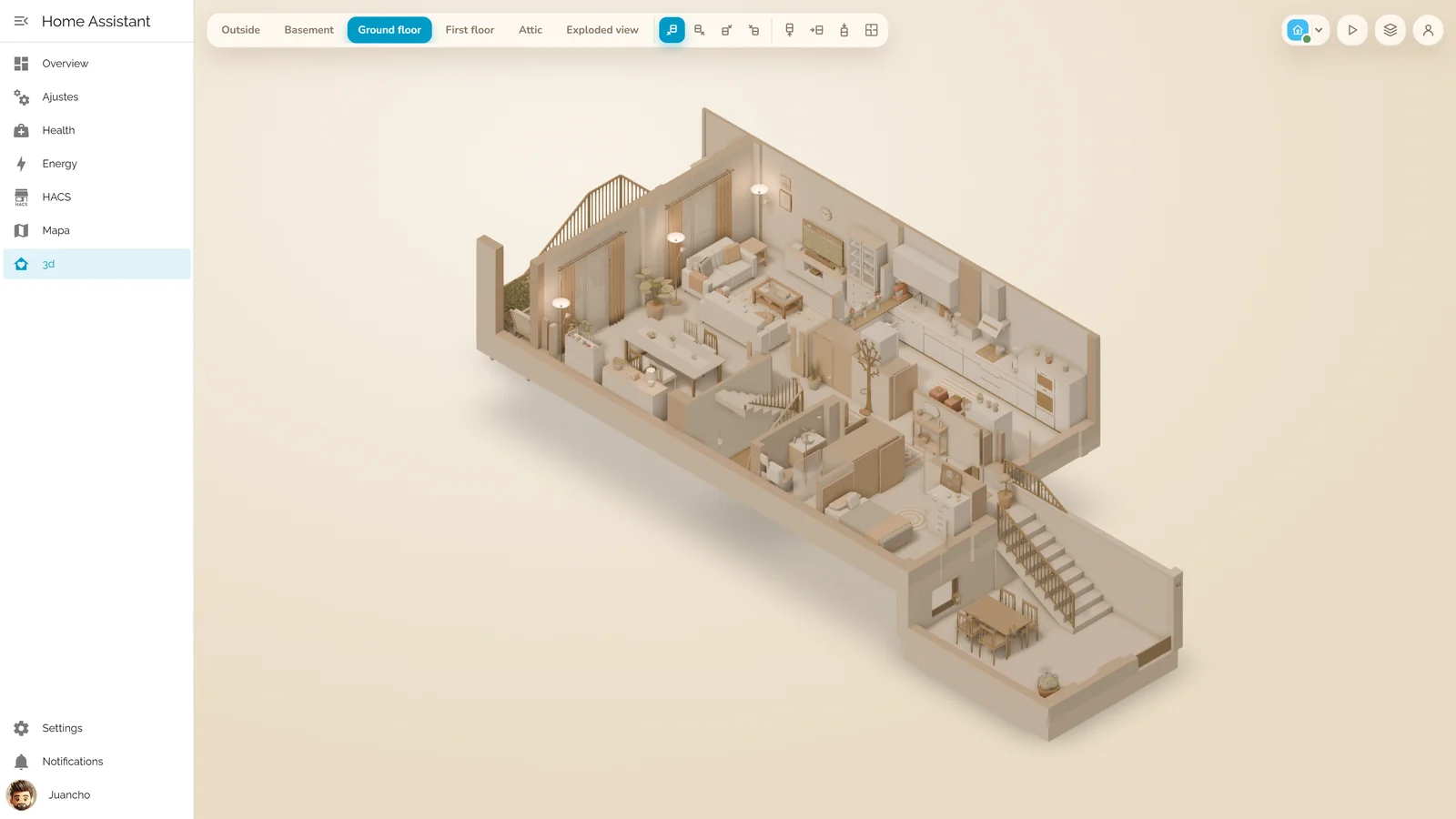
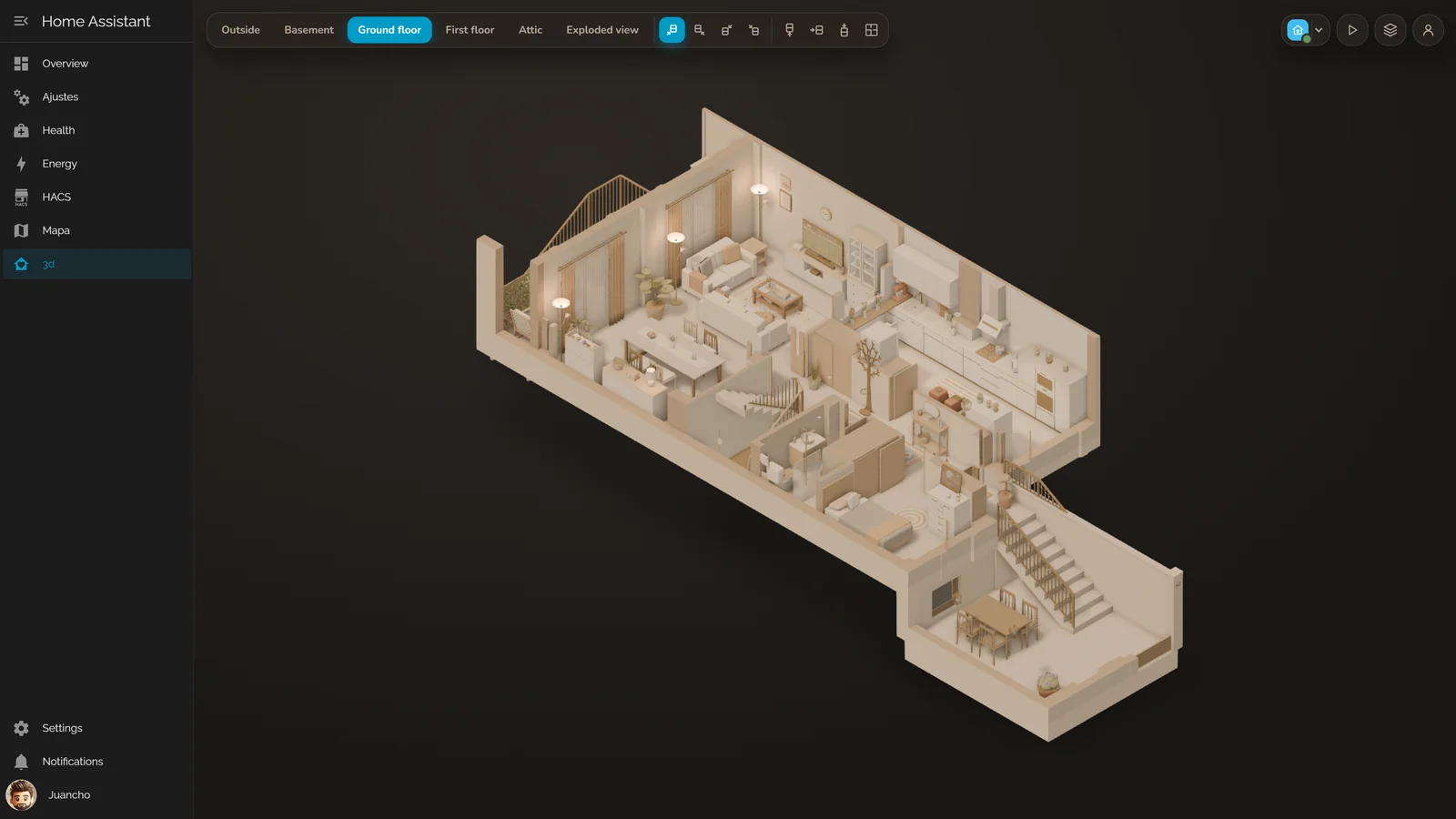
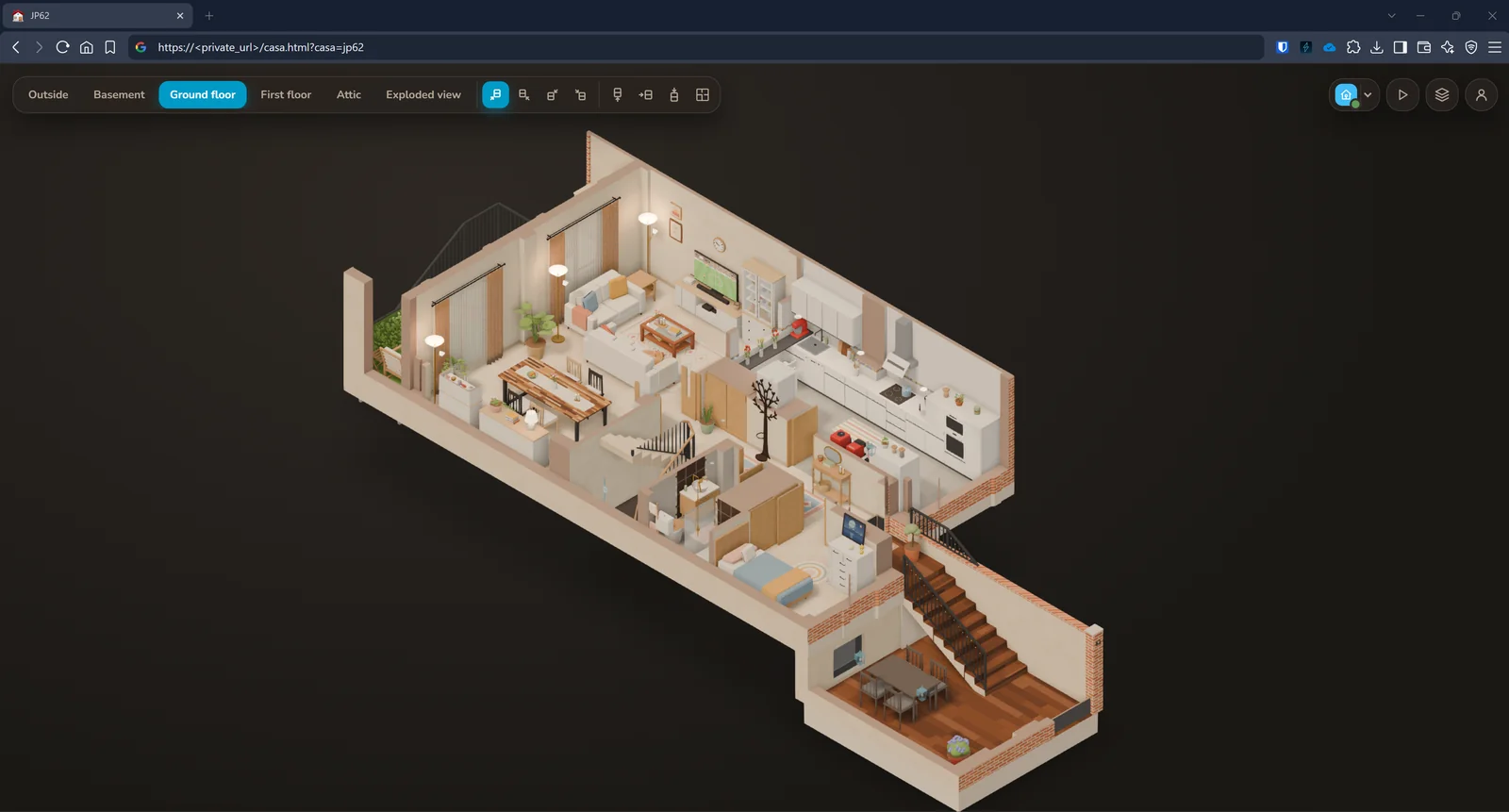
Inside Home Assistant, the house shows up as just another panel in the sidebar, in the phone app too, and it doesn’t ask for credentials: it uses the session you already have open. Outside, it’s a normal website. If you’re not signed in, it sends you to your Home Assistant’s login screen, the same one its apps use, and then brings you back. Either way, whatever you do is done in your name.
On your phone, in two languages, day and night
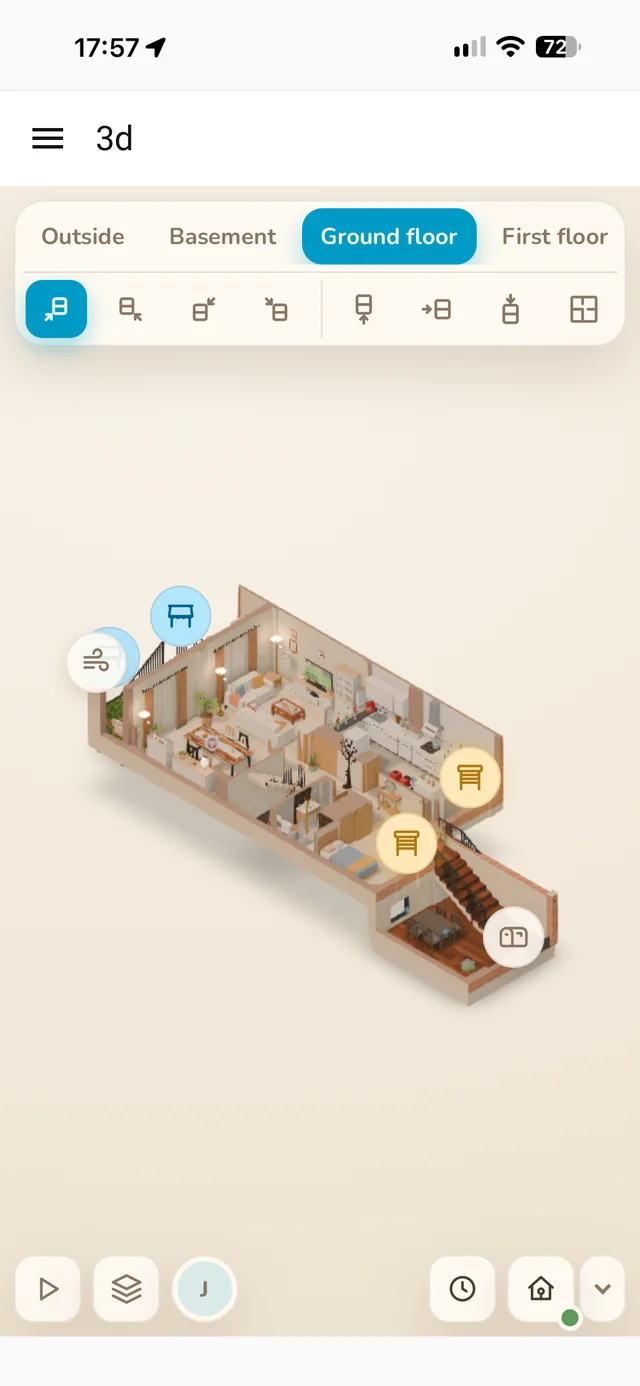
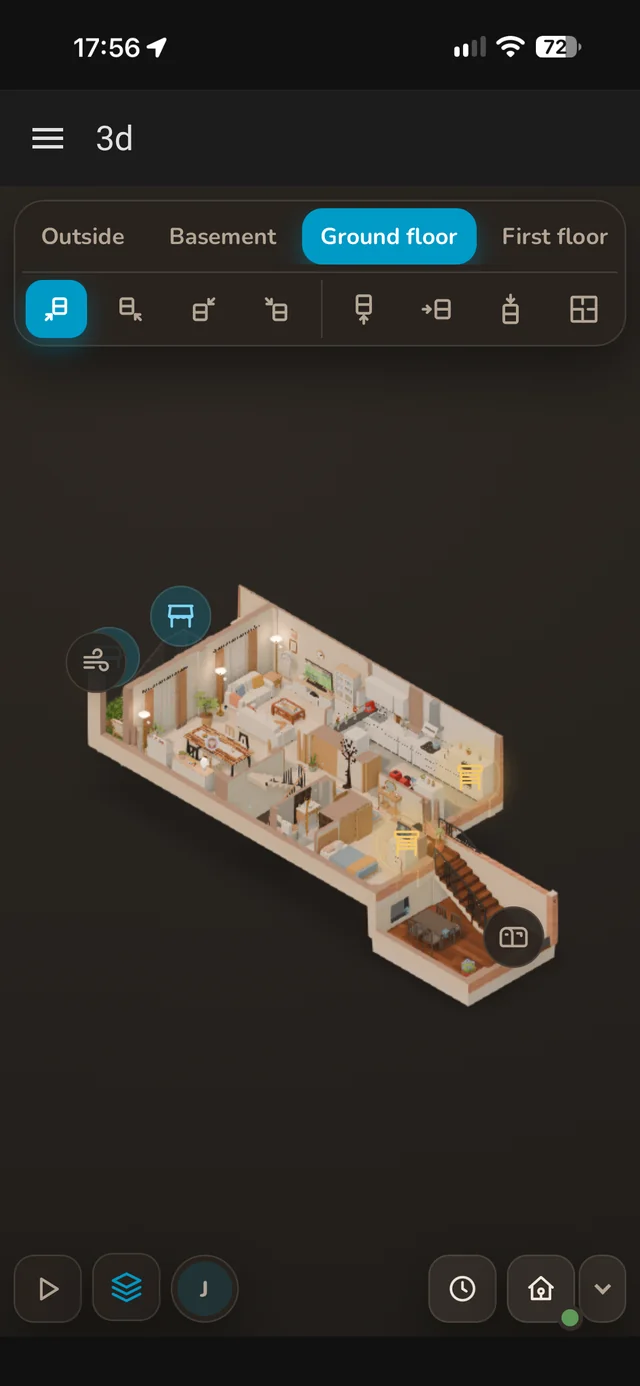
It adapts to any screen (including Safari on the iPhone, which put up a fight) and runs at a sustained 60 frames per second, on both the iPhone and the computer. It’s in Spanish and English, and it has light and dark mode, which follows the system by default.
A demo editor
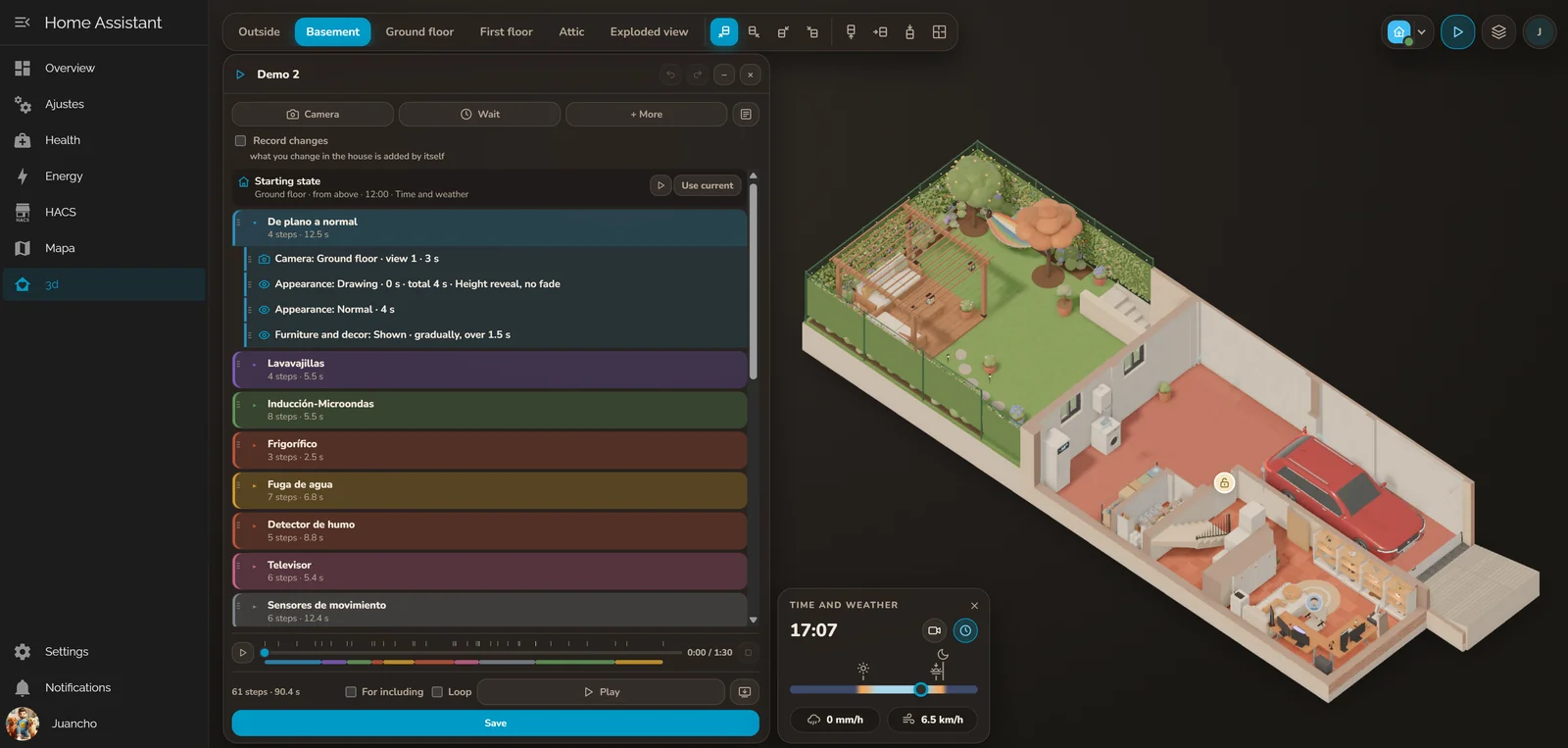
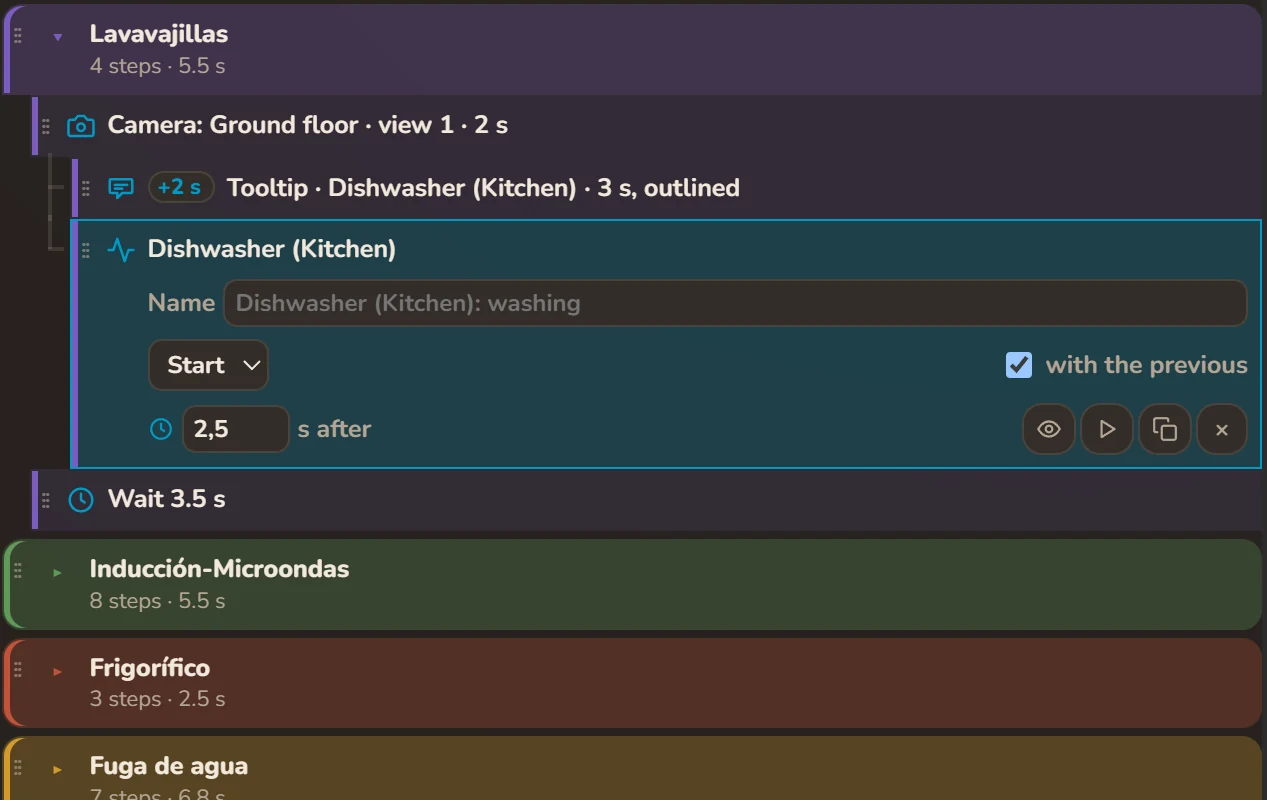
To show it off, I built a demo editor: tours with their own camera moves, titles, tooltips and what happens at each moment (this turns on, that opens), with a timeline to jump to any point and undo whatever you don’t like. Each demo can be downloaded as an MP4 video, at up to 4K and 60 fps, rendered in the browser itself. Both videos in this post come straight out of the editor, untouched; the only thing I added afterwards, with FFmpeg, was the music.
Built with AI
A confession: I didn’t write most of this line by line. I built it with AI agents in GitHub Copilot, mainly with the Claude Opus 5.5 and GPT-6 Astra models.
What worked best was giving them clear rules from the start:
- Everything generic. No hacks for my house: the engine has to work for someone else’s.
- Nothing hard-coded. Every specific value goes in a configuration file, not in the code.
- No logic in the web. If something needs working out, Home Assistant does it.
- Quality first, even in a hurry. And no tests that pass sometimes and fail other times.
- Before a big change, the plan. Explain it to me and wait for my go-ahead.
- Watch the progress live. The website open in my browser while they work.
- My real house is look-only. Tests never send it commands.
The hard parts
Not everything was as pretty as in the videos. A few stories:
- The awnings work backwards. They’re Z-Wave and report their position the other way round: to them, retracted means “open”. In the 3D house they showed up extended exactly when they were rolled up, until we told the house to read them backwards.
- The shutters don’t say where they are. They only report their position once they get there. While they’re moving, the web animates them by working out where they should be: I timed them, and they take 25 seconds from end to end.
- It wouldn’t even load on the iPhone. Safari lacks a browser feature we were using to run tasks in idle moments. We had to write our own version.
- Logging in, inside the app. In the Home Assistant app, its login screen doesn’t work inside a panel. That’s why the panel hands the website the session you already have open.
Q&A
Where’s the code?
It’s not public for now. The part that generates the house in Blender is very specific to mine; the website, on the other hand, is already generic and can show any house. It’s all a work in progress, and I won’t publish it until the whole thing is general enough.
How do you know which room everyone is in?
With a few ESP32 boards spread around the house that measure the Bluetooth signal strength of our phones, plus the Bermuda BLE Trilateration integration, which uses that to work out which area each person is in.
Does it replace Home Assistant?
No. Home Assistant is the beast behind it: the engine, all the logic and all the automations. This is the interface. That said, for day-to-day stuff, it’s often all I need.
Could I use it in my house?
The website already works for any house, but today it needs a model of the house built the way mine is, and that part is still very specific. See the first question.
Is it safe to open from outside the house?
Without a session you see nothing: you sign in with your Home Assistant account, and whatever you do is done in your name.
How long did it take?
About two weeks, with help from AI.
How much does it cost to run?
Nothing per month. It all runs at home, in Docker containers, with no services to sign up for. The only investment was a handful of AI tokens.
Is it smooth on a phone?
Yes: a sustained 60 frames per second, on both the iPhone and the computer.
What’s next
- More animations. I love them, and there are still things at home that don’t show up: the Amazon Ring doorbell when someone rings, the power I’m pulling from the grid, water usage…
- Other views. For example, one of the home network, with the seven routers and where the cables run.
- The cameras. Bringing the 13 cameras at home into the 3D house itself.
- Publishing the code, once the part that generates the house is generic enough to work for other houses.
What about you? If you had your house in 3D, which sensor would you want to see move first? Let me know in the comments.
Comments
via GitHub DiscussionsSign in with GitHub to join the conversation. Comments are public and stored in GitHub Discussions.